

Documentation Index
Fetch the complete documentation index at: https://docs.formly.ai/llms.txt
Use this file to discover all available pages before exploring further.
What the Dashboard is
The Dashboard gives you one place to monitor the work moving across your organization. You can use it to check overall progress, see what is on your plate, spot documents waiting for approval, review urgent work, catch up on recent activity, and clear unresolved comment threads without jumping between multiple pages.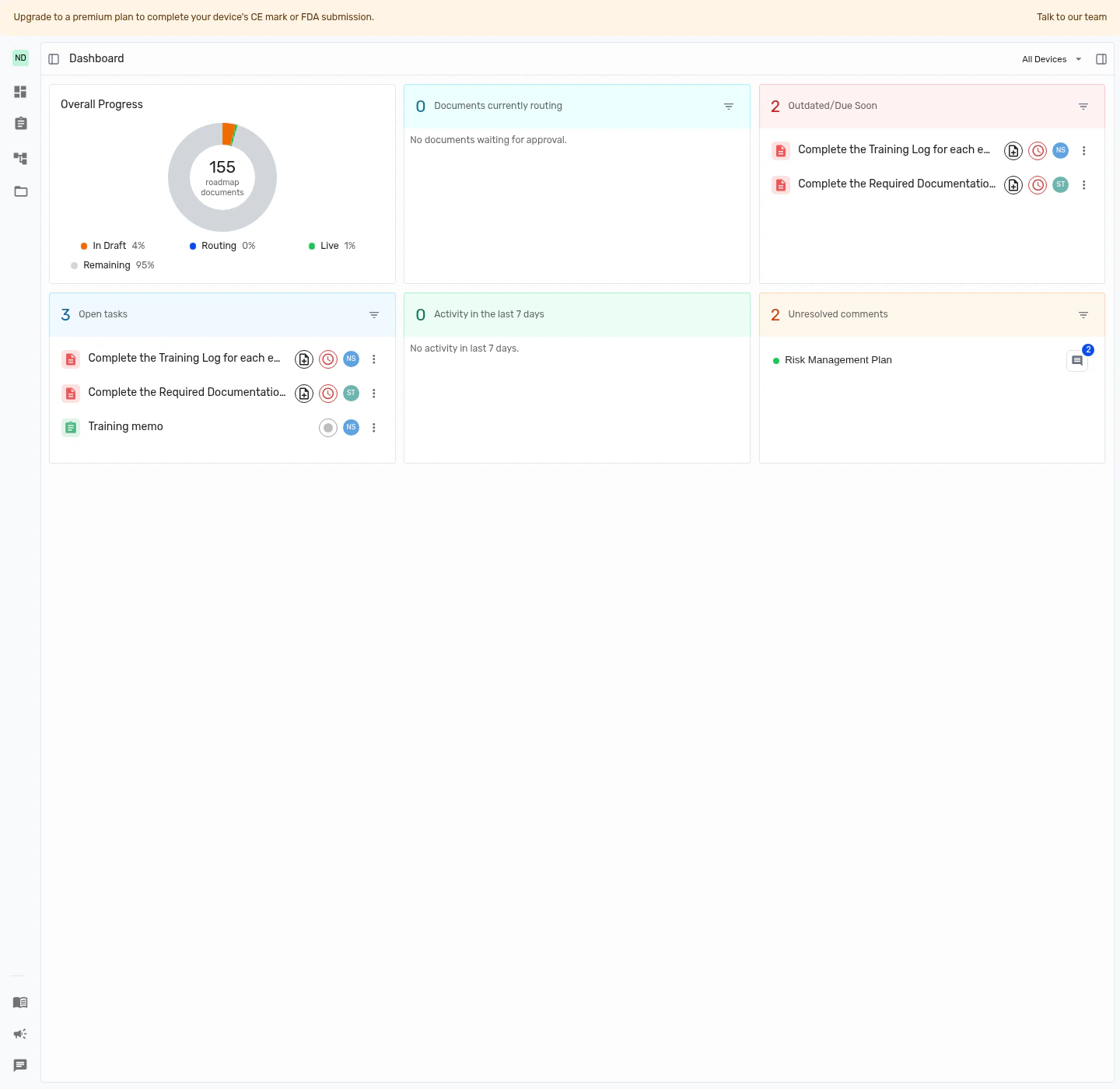
Open the Dashboard
Open Dashboard from the left sidebar. The page opens with an overall progress summary, then shows the current dashboard cards below it.If your dashboard is mostly empty, create a device first with the Create a Device guide.
Change dashboard scope by device
Use the device selector in the page breadcrumb to switch between All Devices and a single device. Choose All Devices when you want a broad organization view, or choose one device when you want to focus on the work for that product. When you open the Dashboard without choosing a scope, Formly keeps your active device context when one is already selected. If there is no active device, the Dashboard starts from your latest device. Changing the device scope updates every card on the page. If you apply filters while looking at one scope, they stay tied to that card and that scope, so your all-device view and your device-specific view can stay focused in different ways.Current dashboard cards
The Dashboard currently shows an overall progress heading followed by five cards:- Overall Progress shows how much of your roadmap is being worked on, how many assigned tasks and unresolved comments need your attention, and how much of the roadmap is in draft, routing, live, or remaining.
- Documents Currently Routing shows documents that are moving through the approval process so you can see what is waiting on review. Learn more about approvals in Approvals.
- Outdated / Due Soon highlights work with overdue or upcoming due dates so you can triage the most urgent items first.
- Open Tasks shows active work that still needs attention and links you back to the related tasks and documents.
- Activity in the Last 7 Days groups recently completed tasks, fully approved documents, and recently resolved comments into one recent-activity view.
- Unresolved Comments shows documents that still have open comment threads so you can jump back into review conversations quickly.
Filter cards
Most list-style cards include a filter button in the card header. Use it to narrow the rows in that card without changing the rest of the dashboard.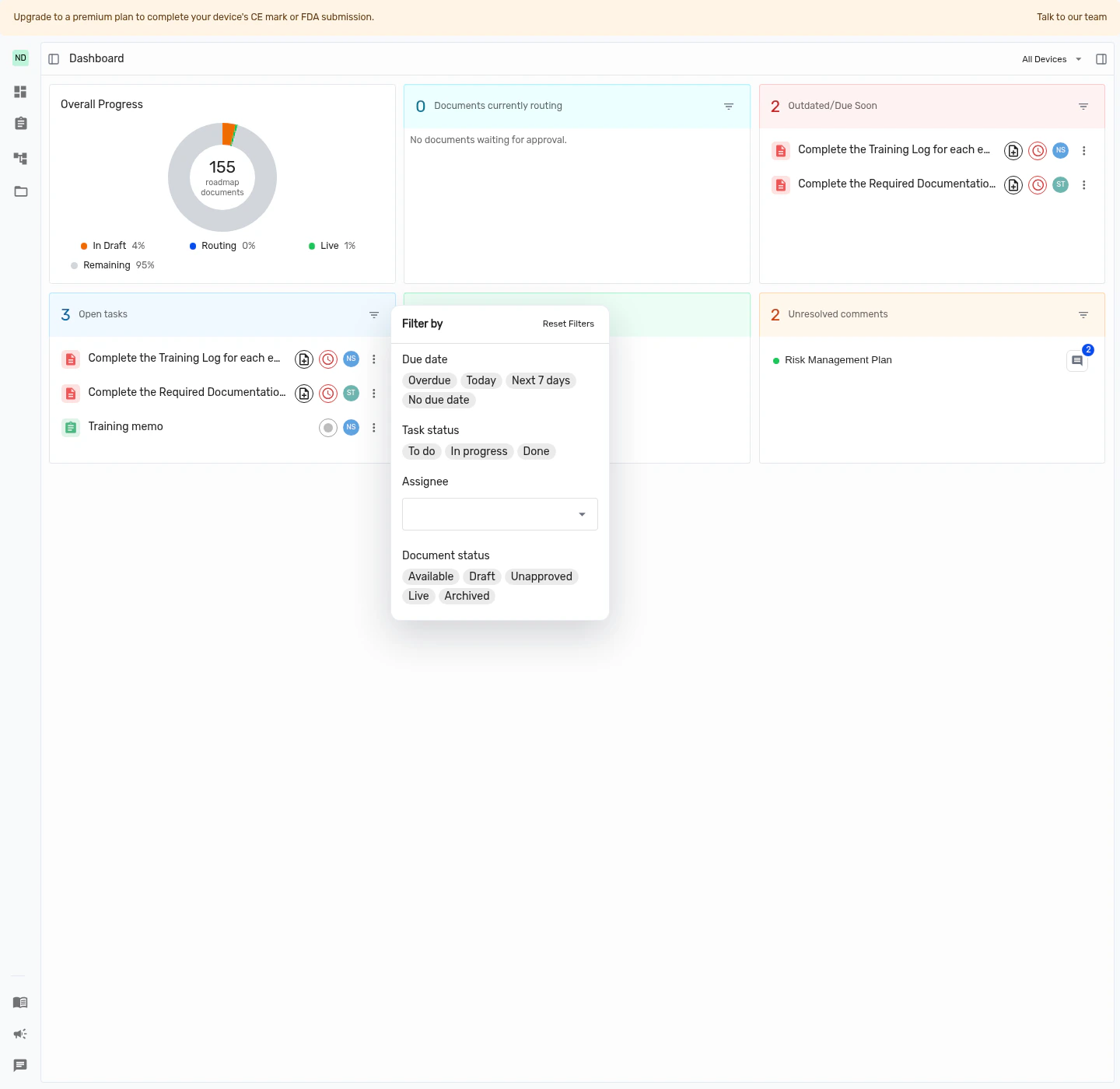
Review comments from the Dashboard
Use the Unresolved Comments card to find documents that still need discussion or a final decision. Select the comment button on a row to open a thread preview directly from the dashboard.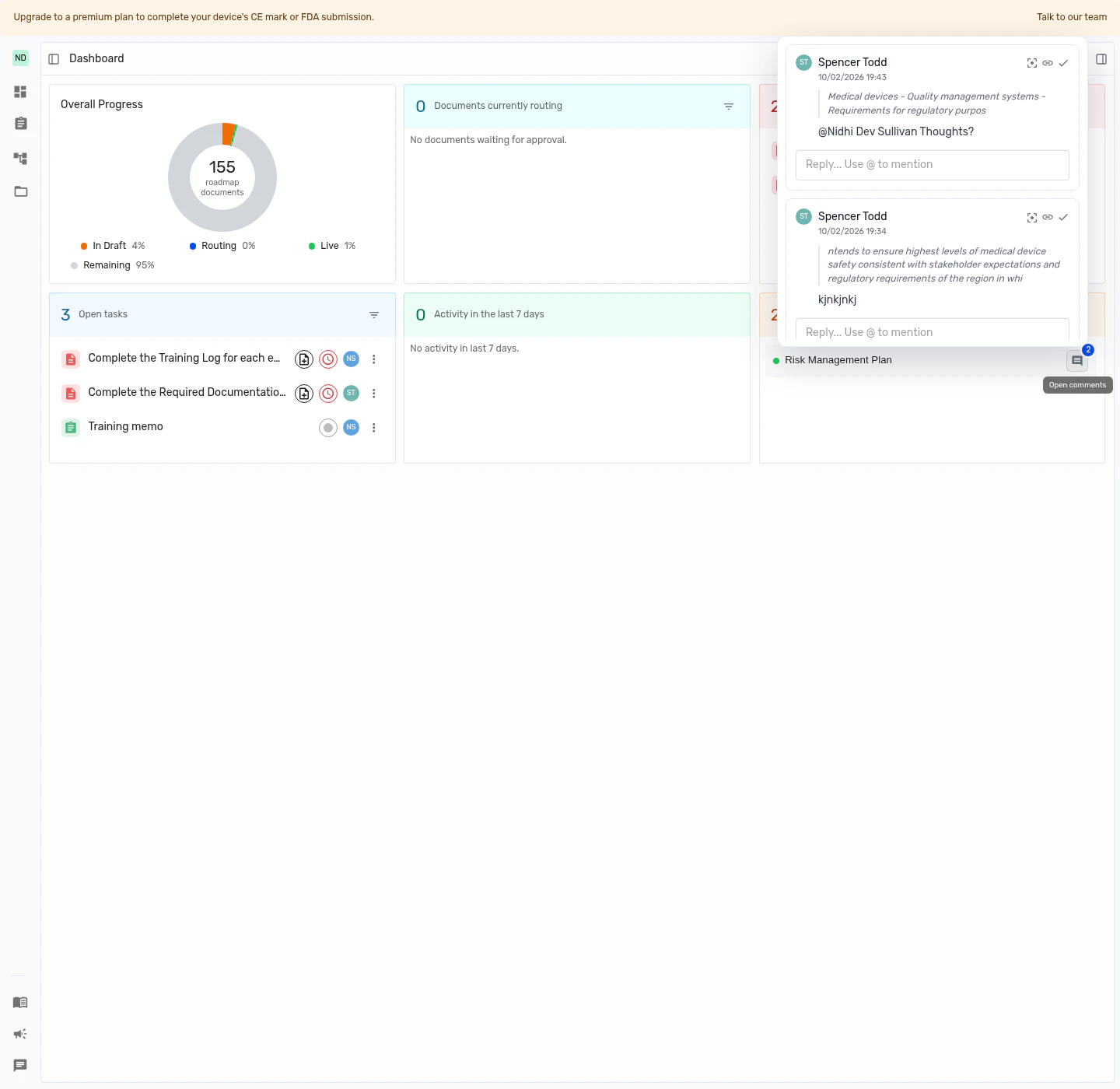
Best practices
- Start with All Devices for a broad triage pass, then switch to one device when you want a focused working view.
- Check Documents Currently Routing before review meetings so you know which approvals are still waiting.
- Use Outdated / Due Soon and Open Tasks together to separate urgent work from the rest of your backlog.
- Review Activity in the Last 7 Days after a review cycle or release so you can quickly confirm what changed recently.
- Clear Unresolved Comments regularly so review conversations do not block document progress.